Don't be left in the dark.

Little Green Light is a cloud-based donor management system for fundraisers.
Subscribe to get our latest product updates, best practices and tips to grow your nonprofit.
Using LGL Email Builder to craft visually appealing emails

Posted April 30, 2026 by Timi Paccioretti

Creating email with LGL Advanced email builder

With the recent rollout of Little Green Light’s new email builder, we thought this would be a great time to share some best practices for sending email from nonprofits as well as offer some visual examples of the types of emails you can create with the LGL Advanced Email Builder.

Nonprofit email best practices

Make your emails mobile friendly

According to a recent survey by NonProfit Tech for Good, a Digital Marketing and Fundraising Resource for Nonprofits, 53% of all emails are opened on a mobile device. It’s important to ensure that your emails are mobile friendly, allowing recipients to easily read your emails on smartphones and tablets. Make sure you use a mobile-responsive email template that resizes your content based on the device it is being viewed on. No matter how good the content is, if it can’t be read easily, the email is likely to be deleted, or worse, lead readers to unsubscribe from your list.

A word of caution: Using multiple columns in your email can significantly reduce readability on mobile devices. The key is to review and test your email design before sending.

The new LGL email builder allows you to preview how your email will look on a mobile device, send test emails, and adjust them for readability before sending.

Publish regular newsletters and fundraising appeals

E-newsletters are a great way to keep the lines of communication open with your supporters and help them stay connected to your organization. Be sure to balance your fundraising appeal emails with non-ask emails. Sandy Rees of Get Fully Funded suggests balancing each Ask with 3 non-Ask emails.

When drafting your email appeal, NonProfit Tech for Good suggests that you “follow a simple framework: 1) communicate the problem that needs to be solved; 2) explain how your nonprofit can solve the problem; and 3) ask for financial support to help solve the problem together.”

Limit call-to-action buttons

Hubspot recommends limiting the number of call-to-actions to one or two per email. Optimizing the use of your call-to-action buttons can make a significant impact on your email’s click-through rates.

Button elements are one of the new design options available in the new LGL email builder.

Offer an opt-out option

In order to maintain a healthy email list and comply with CAN-SPAM guidelines, it’s important to include an opt-out link in your emails. You should include your physical address as well.

Learn how to create an opt-out form in Little Green Light and add it to your email template by editing your email sender signature.
How to create a design using the LGL Email Builder

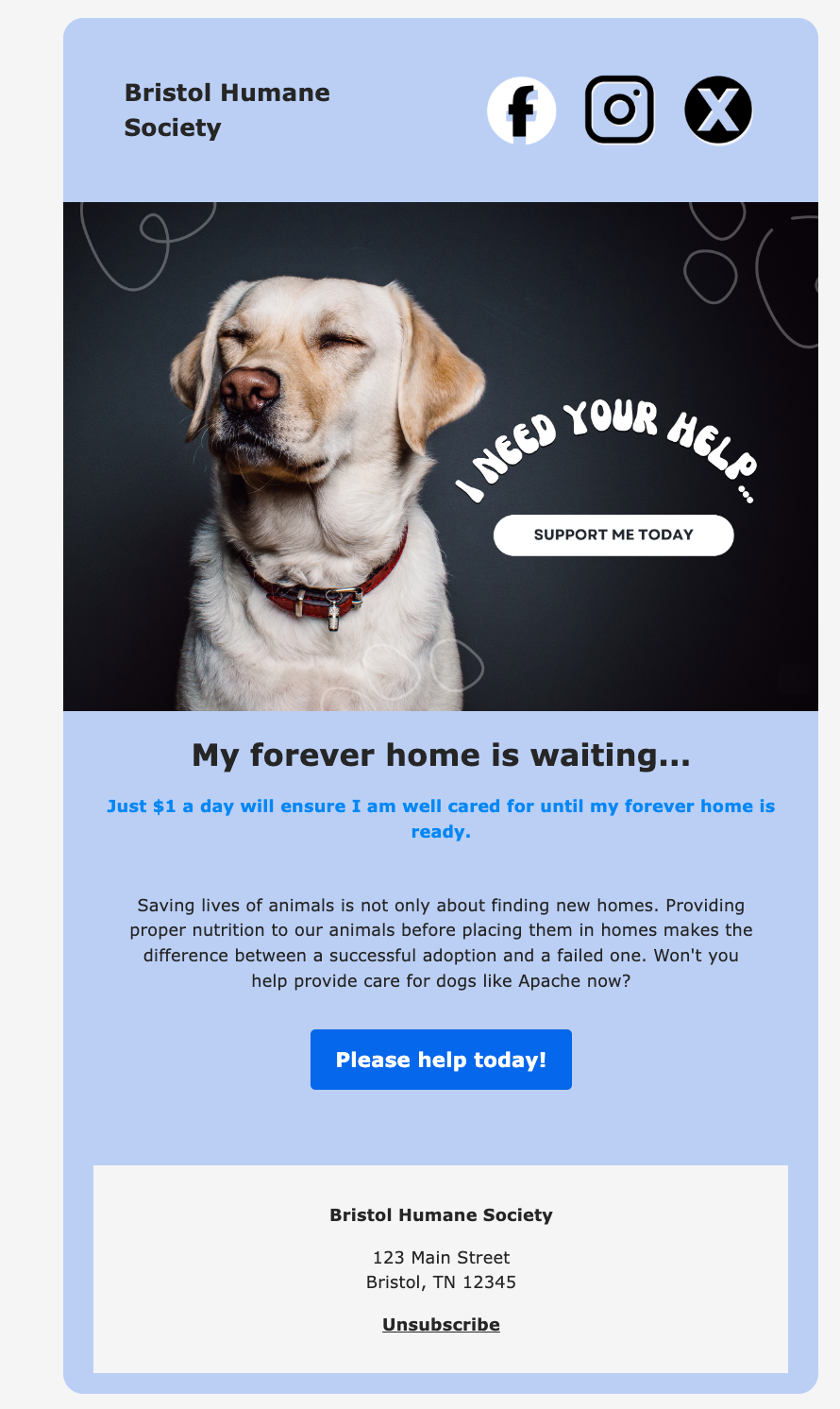
Solicitation email example:

Solicitation email exam ple


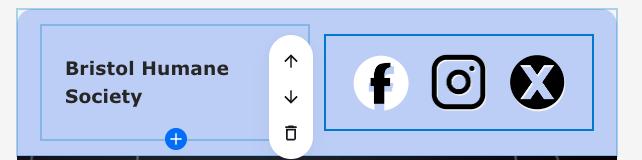
The first content block:

Columns element

  • This is a Columns element set up to create 2 columns
  • The first column contains a Text element to add the organization name
  • The second column contains another Columns element with 3 columns, with a social media icon inserted in each
  • Pro tip: add the url of your social media account to the image file to make them clickable in your email

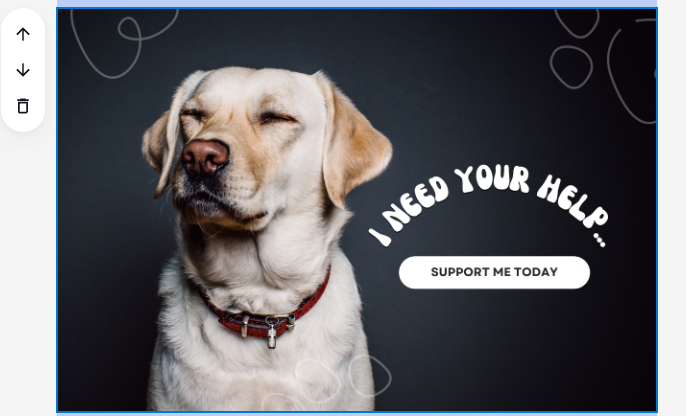
The second content block:

Image element

  • This is an Image element. You can use an image you have saved in your image list or upload a new image you’ve created elsewhere
  • Pro tip: Use Canva to create perfect images with text like the example above. (Canva is an online design and visual communication platform that empowers everyone to design anything and publish anywhere. Canva offers a free plan that gives access to thousands of templates, images, and design tools—perfect for creating presentations, social media posts, videos, and more. Nonprofits can qualify for a premium account for free, too)

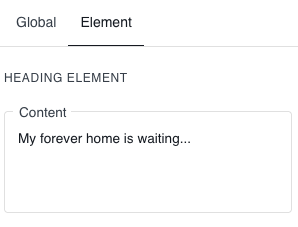
The third content block:

Heading element

  • This is a Heading element. Add your desired content in the box to the right of the builder:

Global element

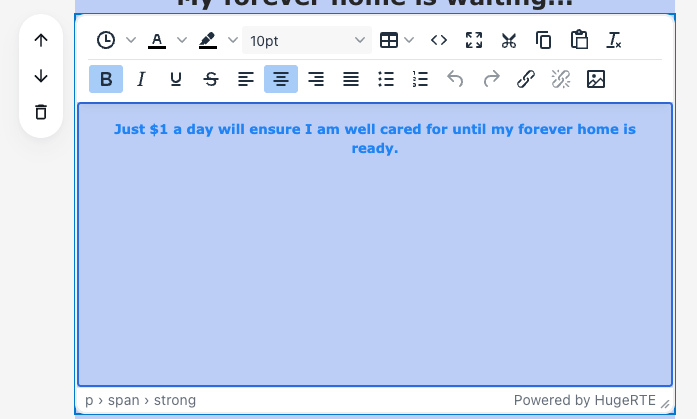
The fourth content block:

Text element

  • This block uses the Text element. Content can be directly added and formatted within the block
  • In this example, the text color was changed to blue, bolded, and centered in the space
  • Pro tip: Within Text elements, you have the ability to add merge fields to personalize the content. For instance, you can add the merge field [[first_name]] in the content to make the ask even more personal

The fifth content block:

Text element with background color

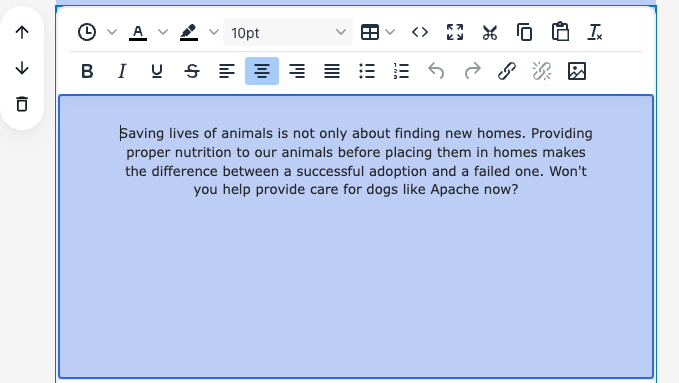
  • This is another Text element
  • Pro tip: Creating separate Text elements gives you more flexibility in formatting and moving content around. Note the up/down arrows on the left of the block. This allows you to move the block up or down the page, if desired. The trash can icon can be used if you wish to delete the element all together

The sixth content block:

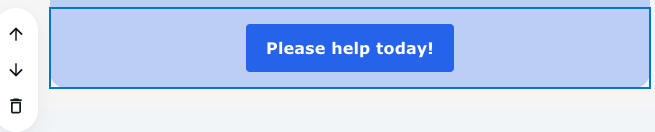
Button element

  • This block uses the Button element. You can change the button content, color, shape, and size
  • Pro tip: Link the url of your LGL donation form to the button and make it easy for your donors to give right from your email

The last content block:

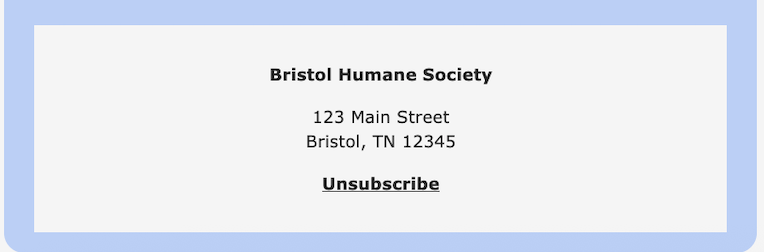
Container element

  • This block uses a Container element with a Text element inserted inside the container
  • Pro tip: Use the merge field [[sender_signature]] to manage the opt-out content and links in your email footer

For more instructions on creating your email content using the LGL email builder, please see our Help article.
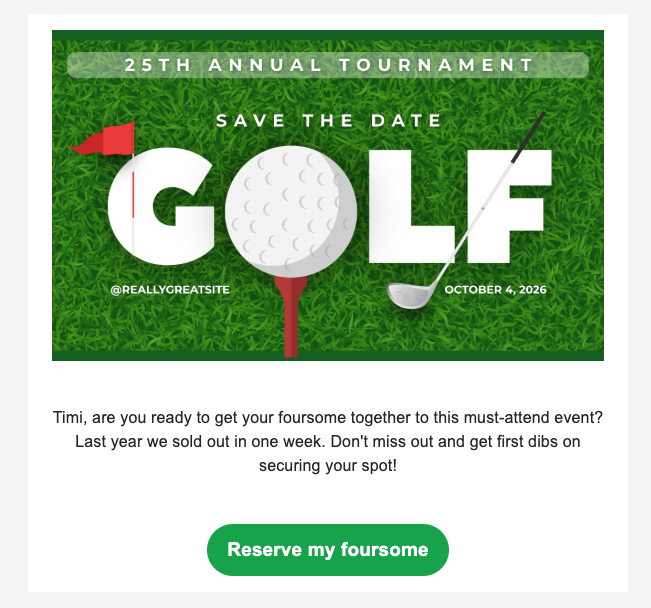
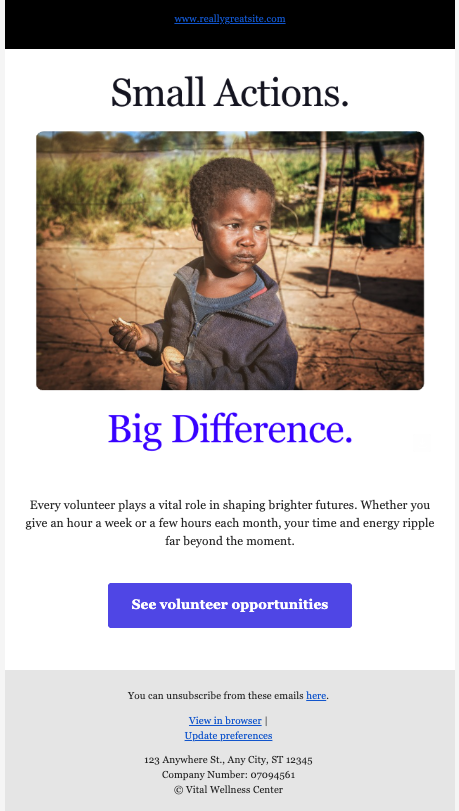
Visual examples of emails created with the LGL Email Builder

Save the date email:

save the date email


Volunteer request:

Volunteers needed email


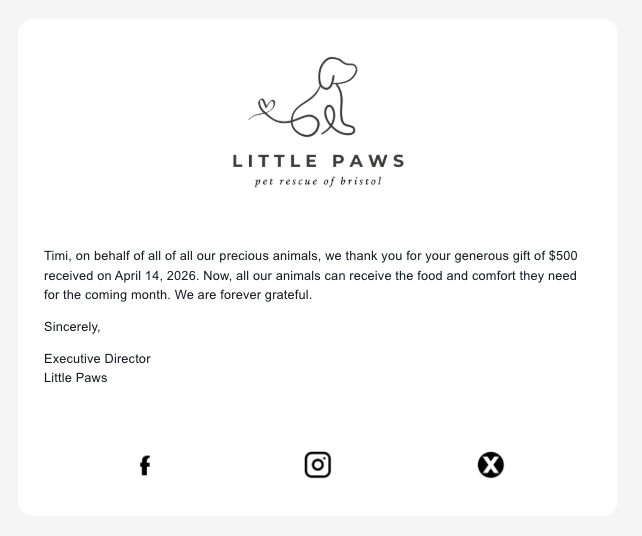
Donation acknowledgment email:

donation acknowledgment email


Monthly donor e-newsletter:

monthly donor enewsletter


Ready to try LGL? Get your first 30 days free. No credit card required.